
 Winbuzz App Not Working? Quick and Safe Steps to Fix the Problem
 2026-11-18
Introduction
Mobile applications sometimes stop responding because of network interruptions, outdated software, or device compatibility issues. These problems can affect loading, account access, and navigation. When Winbuzz is not working properly, users should begin with simple troubleshooting steps before reinstalling anything. Checking the connection, application version, and security settings can often help identify the problem without putting personal information at risk.
Why Is the App Not Working?
Several technical issues can prevent a mobile application from functioning normally.
Common causes include:
- Weak or unstable internet connection
- Outdated application version
- Insufficient device storage
- Corrupted application cache
- Unsupported operating system
- Temporary server maintenance
- Incorrect login credentials
Identifying the likely cause helps users choose the appropriate solution.
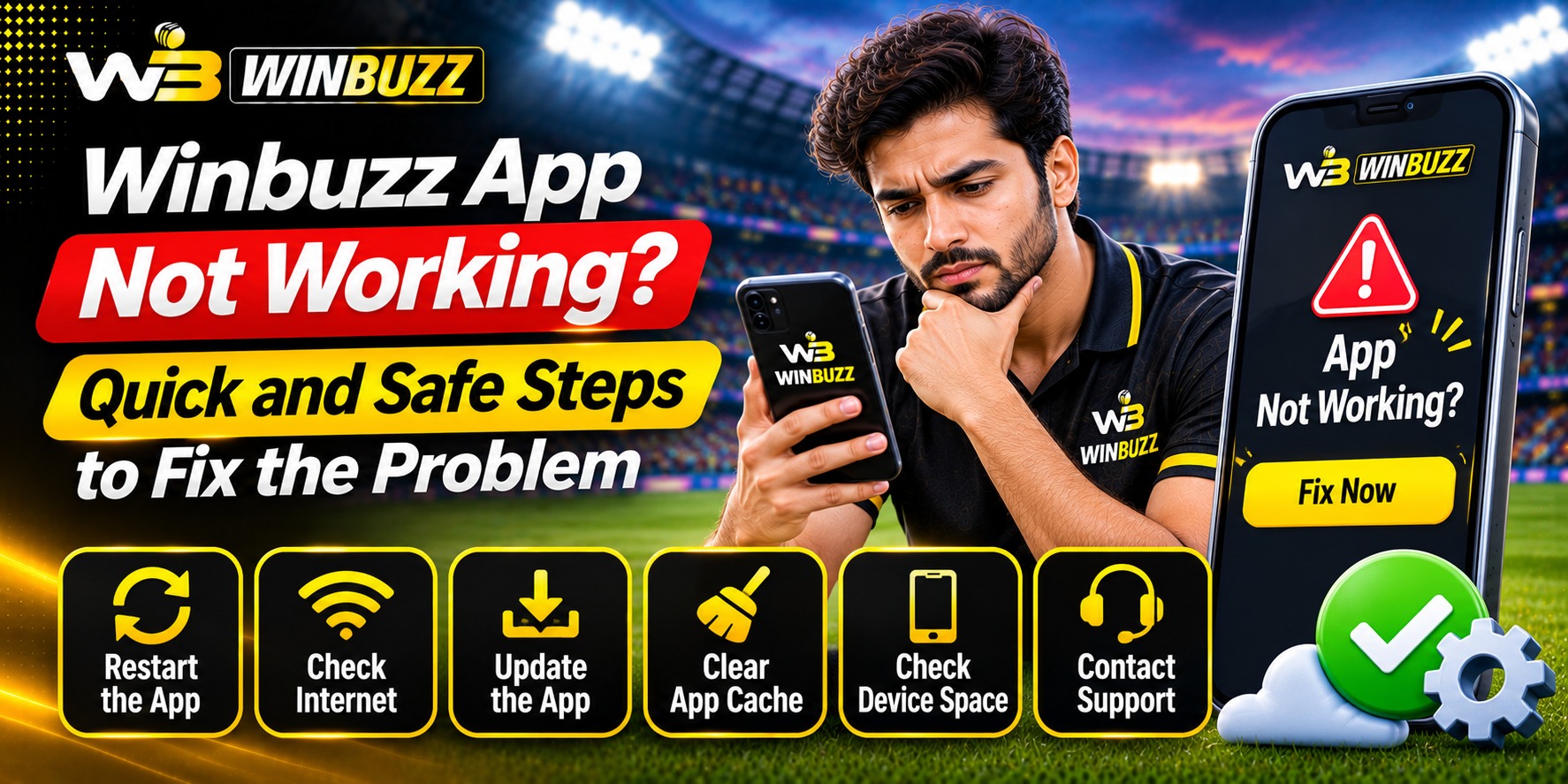
How to Fix App Problems Step by Step
1. Check Your Internet Connection
Start by checking whether other websites or applications are loading correctly.
Switch between Wi-Fi and mobile data to identify connection problems. If necessary, restart the router or reconnect to the network.
2. Restart the Application
Close the application completely and reopen it.
On Android, open the recent-apps screen and remove the application before launching it again.
Restarting can resolve temporary loading problems without changing account information.
3. Check for Application Updates
Older application versions may experience compatibility problems after operating-system updates.
Check the verified platform website for information about officially supported application versions.
Avoid installing modified APK files from unknown websites or messaging groups.
4. Clear the Application Cache
Android users can try clearing temporary application files.
Follow these steps:
- Open phone Settings.
- Select Apps.
- Choose the affected application.
- Open Storage.
- Tap Clear Cache.
- Restart the application.
Clearing the cache generally removes temporary files without deleting account information. Avoid selecting Clear Data unless you understand its effects.
How to Fix Login Problems
Account-access difficulties may occur because of incorrect passwords, expired sessions, or temporary verification issues.
If the Winbuzz login process fails, check the following:
- Confirm the website address.
- Enter the correct username.
- Check password spelling and capitalisation.
- Remove accidental spaces.
- Use the official password-recovery option.
- Avoid repeated unsuccessful login attempts.
Never share passwords or OTPs with anyone claiming to provide technical assistance.
What If the App Keeps Crashing?
Repeated crashes may indicate insufficient storage, software conflicts, or device incompatibility.
Try restarting your phone and checking available storage. Installing current operating-system updates may also improve compatibility.
If the problem continues, check whether the verified mobile website works correctly.
Do not disable essential device-security protections simply to force an application to run.
When Should You Reinstall the App?
Reinstallation should be considered only after simpler troubleshooting methods have failed.
Before reinstalling:
- Confirm that an official download is available.
- Verify the source and application version.
- Ensure your account-recovery information is accessible.
- Avoid downloading unfamiliar APK files.
- Review permissions after installation.
If the official application cannot be verified, using the supported mobile website may be safer.
Read More: How to Compare Sportsbook Odds on Winbuzz for Better Value Bets
When to Contact Customer Support
Contact verified customer support when login recovery fails, technical errors continue, or account activity appears unusual.
Prepare the device model, operating-system version, error message, and approximate time of the problem.
Do not send sensitive credentials or complete payment information.
Conclusion
Most mobile application problems can be investigated through basic checks involving connectivity, updates, storage, and account access.
Users should begin with simple solutions and avoid unnecessary changes to device security. If troubleshooting does not resolve the issue, verified support channels can provide further assistance.
FAQs
Why is my app not opening?
An unstable connection, outdated software, insufficient storage, or temporary technical issue may prevent the application from opening.
How can I fix a loading problem?
Check your internet connection, restart the application, clear its cache, and confirm whether an updated version is available.
Will clearing the cache delete my account?
Clearing an application's cache normally removes temporary files rather than deleting the account. Clearing application data is different and may remove locally saved settings.
What should I do if login keeps failing?
Check your credentials and website address. Use the official password-recovery process if necessary, and contact verified support if access remains unavailable.
Is reinstalling the application safe?
Reinstallation can be appropriate when the installation source is verified. Avoid unofficial or modified APK files that may expose personal information.