
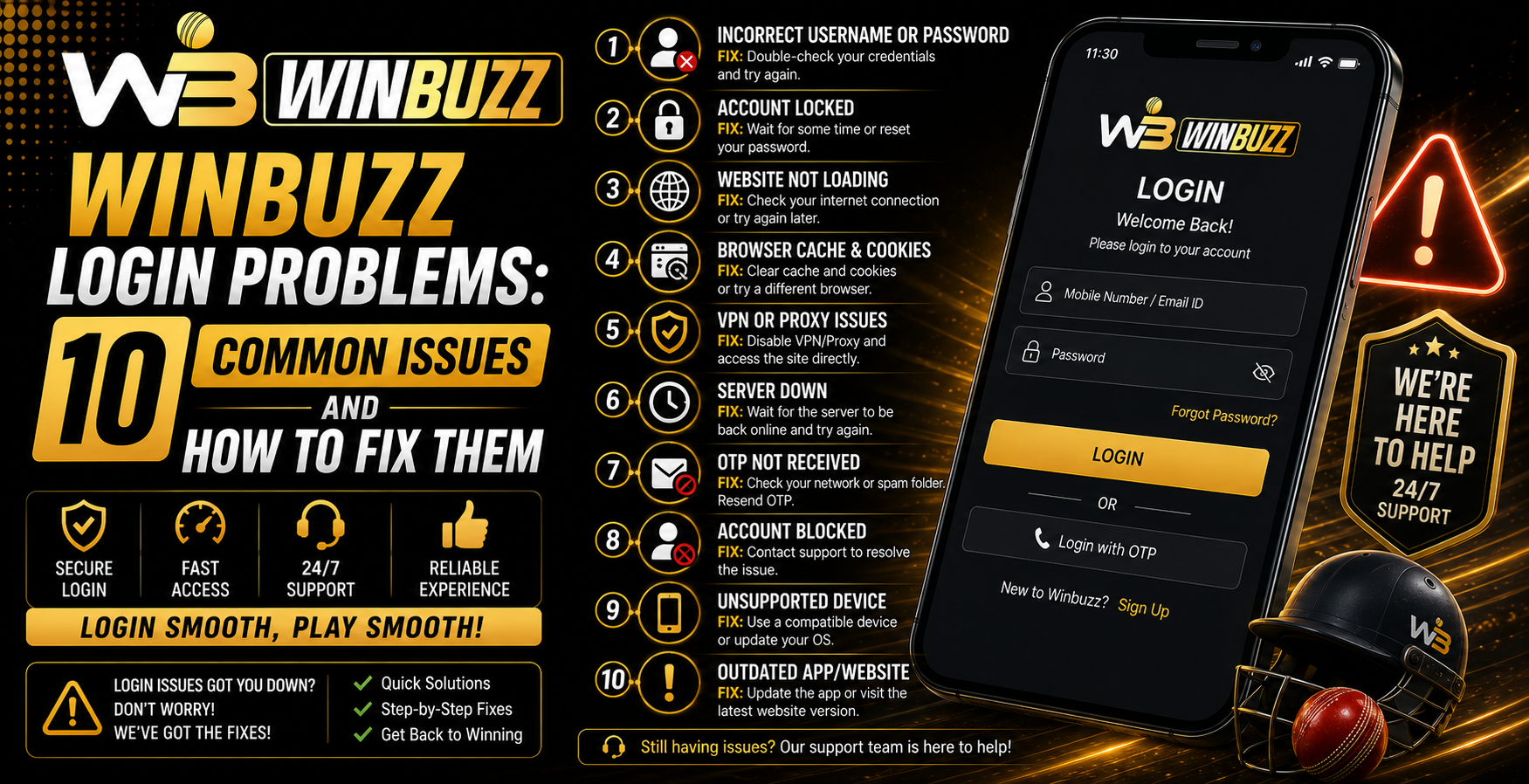
 Winbuzz Login Problems: 10 Common Issues and How to Fix Them
 2026-08-21
Introduction
Login difficulties can be frustrating, especially when you need quick access to an online account. Fortunately, many login problems are caused by simple issues such as incorrect credentials, poor internet connectivity, outdated browser data, or temporary technical errors. Winbuzz users can often identify the cause by following a few basic troubleshooting steps. This guide explains 10 common login problems and practical ways to address them.
1. Incorrect Username or Password
Entering the wrong username or password is one of the most common reasons for unsuccessful account access. Even a small typing error can prevent a successful login.
Before trying again:
- Check the spelling of your username.
- Make sure Caps Lock is not enabled.
- Check for accidental spaces.
- Confirm that you are using your current password.
- Avoid repeatedly entering random passwords.
If you cannot remember your password, use the official recovery process.
2. Forgotten Account Password
It is easy to forget a password, particularly when you have multiple online accounts. Instead of repeatedly guessing, look for the password recovery option on the official login page.
Follow the instructions provided and complete any required verification. Never provide your password or verification code to someone claiming to recover your account privately.
3. Unstable Internet Connection
A slow or unstable internet connection can cause the login page to load incorrectly or disconnect during authentication.
You can try:
- Switching between Wi-Fi and mobile data.
- Restarting your router.
- Moving closer to your Wi-Fi source.
- Checking whether other websites are loading normally.
- Restarting your device's network connection.
A stable connection can make the login process more reliable.
4. Outdated Browser Cache
Browsers store temporary files and cookies to improve website performance. However, outdated data can occasionally interfere with login pages.
If the page behaves unexpectedly, clear the browser's cache and cookies, then close and reopen the browser. Afterward, access the website again through a trusted source.
5. Outdated Browser
An old browser may not properly support current website features. If the login page looks broken, buttons do not respond, or pages continuously reload, check whether your browser needs an update.
Popular browsers usually provide updates through their settings menu. After updating, restart the browser and try again.
6. OTP or Verification Problems
Some account-access processes may require an OTP or another verification step. Delayed messages can make it appear as though the login process has stopped.
If you are not receiving a verification code:
- Check that your registered mobile number is active.
- Check your SMS inbox and blocked messages.
- Confirm that your phone has network coverage.
- Wait briefly before requesting another code.
- Use only the verification option provided by the official website.
Never share an OTP with another person.
7. Login Page Is Not Loading
A blank page, endless loading screen, or unresponsive login button can have several causes. Your browser, internet connection, or temporary website issue may be responsible.
Try opening the page in a private or incognito browser window. You can also test the website with another updated browser. If the problem continues across different devices, the issue may not be related to your browser.
8. Mobile Access Problems
Users accessing an account from a smartphone may experience problems because of an outdated browser, insufficient storage, or temporary application data.
For better mobile access:
- Keep your operating system updated.
- Update your browser or official application when applicable.
- Clear unnecessary temporary data.
- Maintain sufficient device storage.
- Avoid installing applications from unknown sources.
Only use trusted and verified sources when accessing an account.
9. Temporary Account Restriction
Several unsuccessful login attempts can sometimes result in a temporary security restriction. If a warning or waiting period appears, avoid repeatedly trying different passwords.
Instead:
- Stop entering credentials for a while.
- Follow any instructions displayed on the login page.
- Use the official recovery option if appropriate.
- Contact official support if access remains unavailable.
Repeated attempts may make troubleshooting more difficult.
10. Temporary Website Technical Issue
Not every login problem originates from the user's device. Maintenance, technical faults, or temporary service interruptions can affect website access.
If your credentials, internet connection, browser, and device all appear to be working correctly, wait for a short period before trying again. Avoid making unnecessary account changes while investigating a possible temporary service issue.
Quick Troubleshooting Checklist
Before contacting support, work through these basic checks:
- Verify your username and password.
- Check your internet connection.
- Confirm Caps Lock is disabled.
- Clear browser cache and cookies.
- Update your browser.
- Check OTP or verification messages.
- Try private browsing mode.
- Restart your device.
- Avoid repeated failed attempts.
- Check whether the issue continues on another trusted device.
How to Keep Your Account Secure
When resolving login problems, security should remain a priority. Use a strong and unique password, keep your credentials private, and avoid entering account information on unfamiliar pages.
When searching for Winbuzz login, carefully verify the website address before entering any personal or account information. Be cautious with links received through unsolicited messages, social media accounts, or unknown websites.
Also avoid sharing verification codes with anyone. Legitimate support should not require you to disclose your private password.
What to Do If Nothing Works
If the basic troubleshooting steps do not resolve the issue, use the platform's official support or account-recovery channel. Explain the problem clearly and provide only the information that is legitimately requested.
Avoid using unofficial agents or third-party services that promise immediate account recovery. These services may create additional security risks.
Conclusion
Login problems can result from many different factors, but most can be investigated through a simple troubleshooting process. Checking credentials, internet connectivity, browser settings, verification messages, device updates, and possible temporary restrictions can help identify the problem. Users should also prioritise account security and rely on official recovery or support options when basic solutions do not work.
FAQs
1. Why is my account not opening even though my password is correct?
The problem may be caused by browser cache, internet connectivity, verification requirements, temporary restrictions, or a technical issue. Try the basic troubleshooting steps before contacting support.
2. What should I do if I forget my account password?
Use the official password-recovery option available on the login page. Follow the required verification process and avoid using unofficial recovery services.
3. Why am I not receiving my OTP?
Check your registered mobile number, network connection, SMS inbox, and blocked messages. Wait briefly before requesting another verification code.
4. Can clearing browser cache help with login problems?
Yes. Outdated cookies or cached files can sometimes interfere with website sessions. Clearing them and reopening the browser can help resolve certain access problems.
5. What should I do if none of the login solutions work?
If the problem continues after checking your credentials, connection, browser, device, and verification details, contact the platform through its official support or account-recovery channel. Avoid sharing your password or OTP with anyone.