
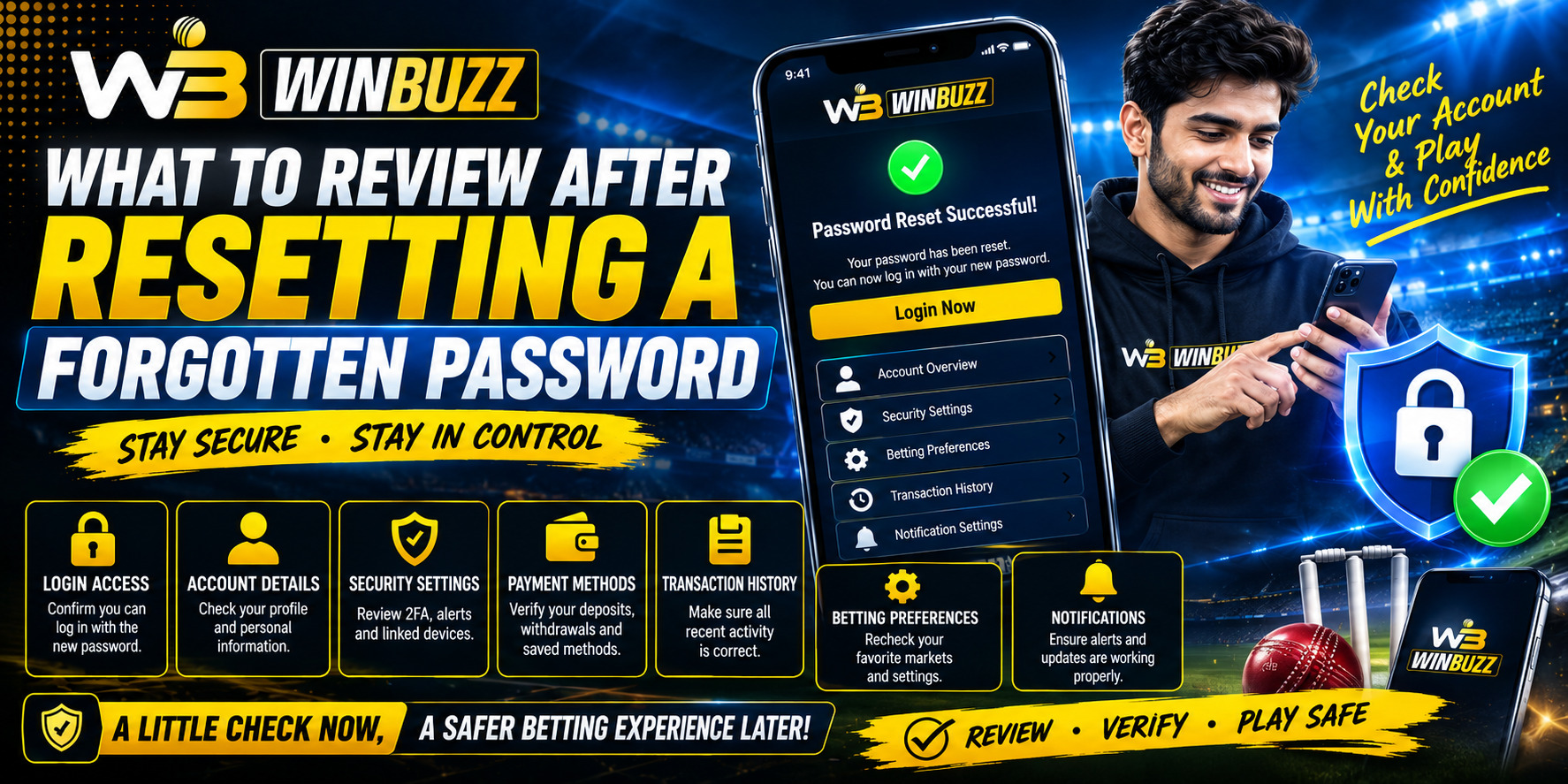
 What to Review After Resetting a Forgotten Password
 2026-09-08
Introduction
Forgetting a password can interrupt access to an online account, but successfully creating a new password is only the first step. After completing a reset, users should take a few minutes to review their account settings, recent activity, recovery options, and security controls. On Winbuzz, these checks can help users confirm that their account information remains accurate and that no unfamiliar activity has been overlooked.
A password reset is also a good opportunity to improve overall account hygiene. Security guidance recommends using unique credentials rather than reusing the same password across different services.
Confirm That the New Password Works
Start by signing in again with the newly created password. Make sure the credentials work normally and that there are no unexpected login errors.
Check that:
- The new password was entered correctly.
- The account opens normally after signing in.
- You can access the usual account sections.
- No unexpected security warning appears.
- You have not accidentally saved an outdated password in your browser.
Avoid repeatedly changing the password unless there is a genuine security reason to do so.
Review Recent Account Activity
After accessing the account, review any available login or account-activity information. Look for unfamiliar devices, locations, sessions, or actions.
Pay particular attention to:
- Unknown login attempts.
- Devices you do not recognize.
- Unusual changes to account information.
- Unexpected password or recovery-setting changes.
- Activity that occurred before or immediately after the reset.
Security agencies recommend investigating unusual account activity following password-related security events.
Check Recovery Information
Recovery information can become outdated over time. Review the email address and phone number associated with the account, if these options are available.
Make sure:
- Your recovery email is still accessible.
- Your registered mobile number is correct.
- You recognize all available recovery methods.
- No unfamiliar recovery information has been added.
Keeping recovery details current can make future account recovery easier while reducing confusion.
Review Active Sessions and Devices
Some services allow users to view active sessions or logged-in devices. If this feature is available, review the list after resetting your password.
If you see a device or session you do not recognize, consider signing it out and changing the password again if you suspect unauthorized access.
This is particularly important when a password may have been exposed or shared previously.
Strengthen Your Account Security
A password reset is an ideal time to review additional security options. If multi-factor authentication (MFA) is available, consider enabling it.
You should also:
- Use a long, unique password.
- Avoid personal information in passwords.
- Never share passwords or OTPs.
- Consider using a reputable password manager.
- Review security notifications regularly.
CISA recommends unique credentials and stronger authentication measures to reduce account-related risks.
Check Your Browser and Saved Credentials
If you normally access Winbuzz login pages through a browser, review saved credentials after changing your password. An old password stored in the browser may cause repeated failed-login attempts.
When signing in, always verify that you are using the legitimate website address rather than a suspicious link received through an unsolicited message.
Be Careful With Password Reset Messages
After completing a password reset, remain cautious about unexpected emails, texts, or messages asking you to confirm credentials.
Never provide your:
- Password
- OTP
- PIN
- Recovery code
- Other private authentication information
If a message appears suspicious, access the service directly rather than clicking an unfamiliar link.
Conclusion
Resetting a forgotten password should be followed by a quick security review. Checking recent activity, recovery information, active sessions, saved credentials, and available authentication options can help users maintain better account security. A strong and unique password combined with sensible security practices provides a better foundation for protecting an online account.
FAQs
1. What should I check after resetting a forgotten password?
Check recent account activity, recovery details, active sessions, saved credentials, and available security settings.
2. Should I create a completely new password after a reset?
Yes. Choose a long, unique password that has not been used on another account.
3. Why should I review active sessions after a password reset?
Reviewing active sessions can help identify devices or login activity that you do not recognize.
4. Is it safe to share my password or OTP with support?
No. Passwords and OTPs are private authentication information and should not be shared with other people.
5. What should I do if I notice unfamiliar account activity?
Secure the account immediately, review available security settings, change the password if necessary, and contact the platform's official support channel for further assistance.